Set up an SMTP provider
Immich sends email notifications through an SMTP server that you provide. Any SMTP server works; this guide covers obtaining credentials from common providers and where to enter them.
Where to enter the settings
All providers are configured in the same place: Administration > Settings > Notification Settings, under Email.
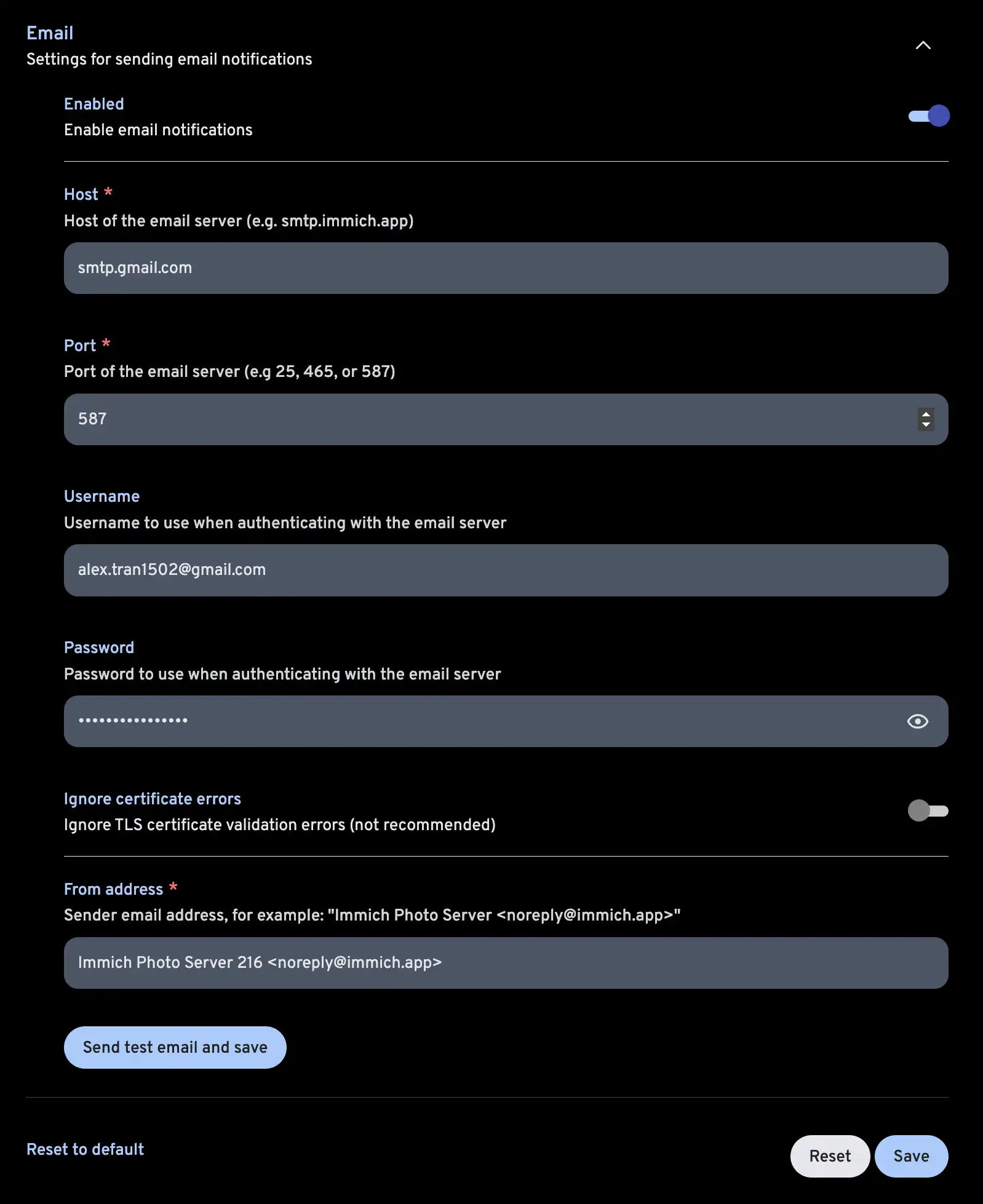
You will need the host, port, username, password, and whether the connection uses SMTPS. The sections below cover where those values come from for each provider.
Gmail
Google requires an app password rather than your account password.
- Add 2-Step Verification to your Google account. This is required before app passwords can be created.
- Create an app password.
At the end of creating your app password, a password is displayed. Save it — this is the value for the password field in Immich.
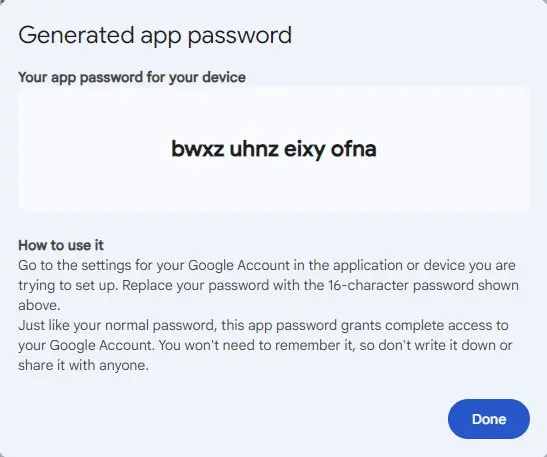
Use your Gmail address as the username. Google documents its current SMTP server settings for the host, port, and encryption values.
Microsoft 365
Microsoft also requires an app password. Which portal you use depends on the type of account:
| Account type | Portal |
|---|---|
| Personal | https://go.microsoft.com/fwlink/?linkid=2274139 |
| Business | https://myaccount.microsoft.com/security-info |
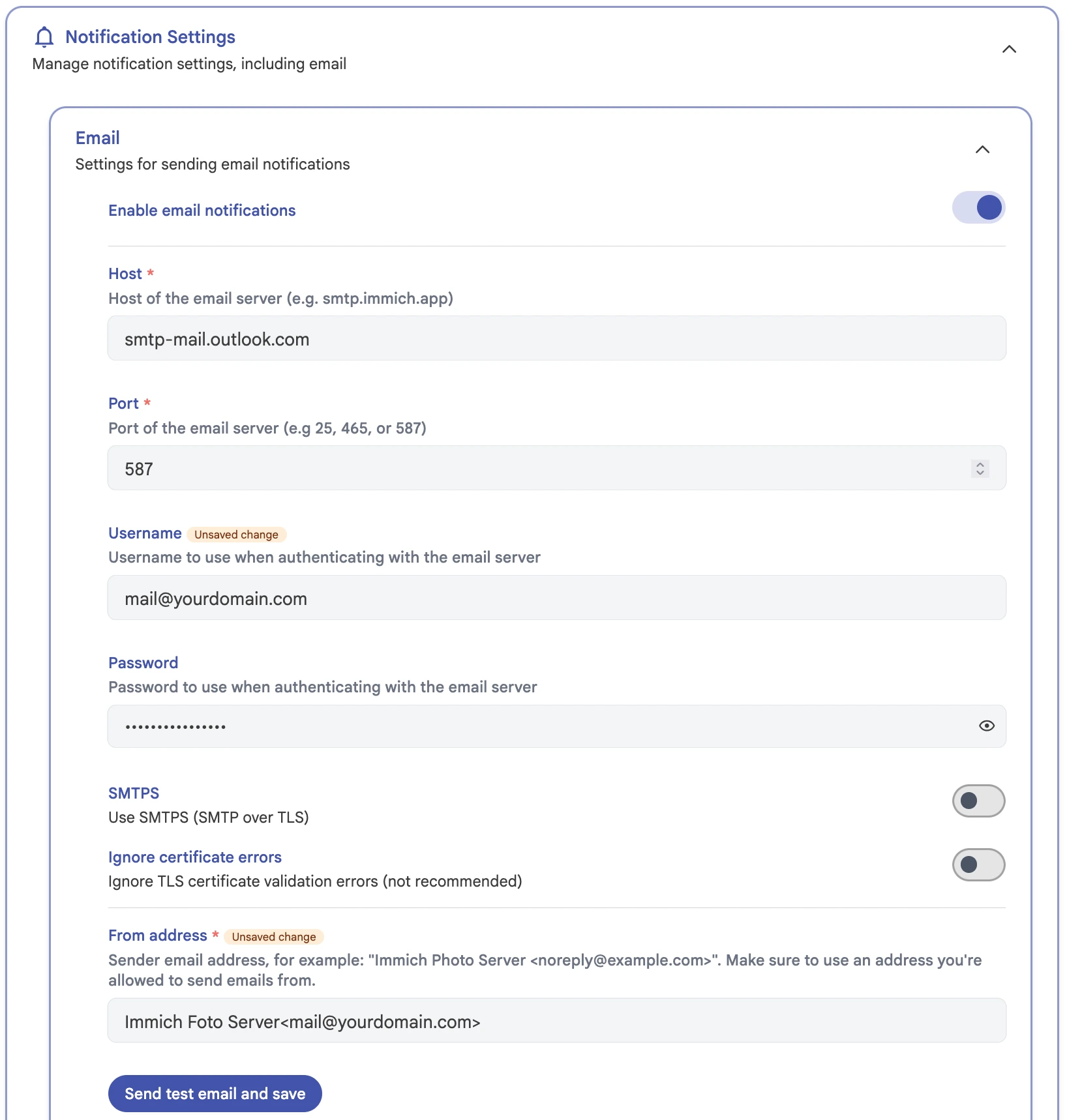
Then enter the following:
| Setting | Value |
|---|---|
| Host | smtp-mail.outlook.com |
| Port | 587 |
| Username | Your email address |
| Password | The app password you created |
| SMTPS | Disabled |
Other providers
Any SMTP server can be used, including a self-hosted one. Consult your provider's documentation for the host, port, and whether to enable SMTPS, and prefer an app password or a dedicated sending credential over your main account password where the provider offers one.