Search your library
Immich offers two ways to find assets: contextual search, which understands the content of your photos and videos, and advanced search filters, which narrow results by metadata. You can try both on the Demo site.
Contextual search works without any specific keywords in the metadata — describe what you remember about the photo. Which model powers it, and how to change it, is covered in the CLIP models reference.
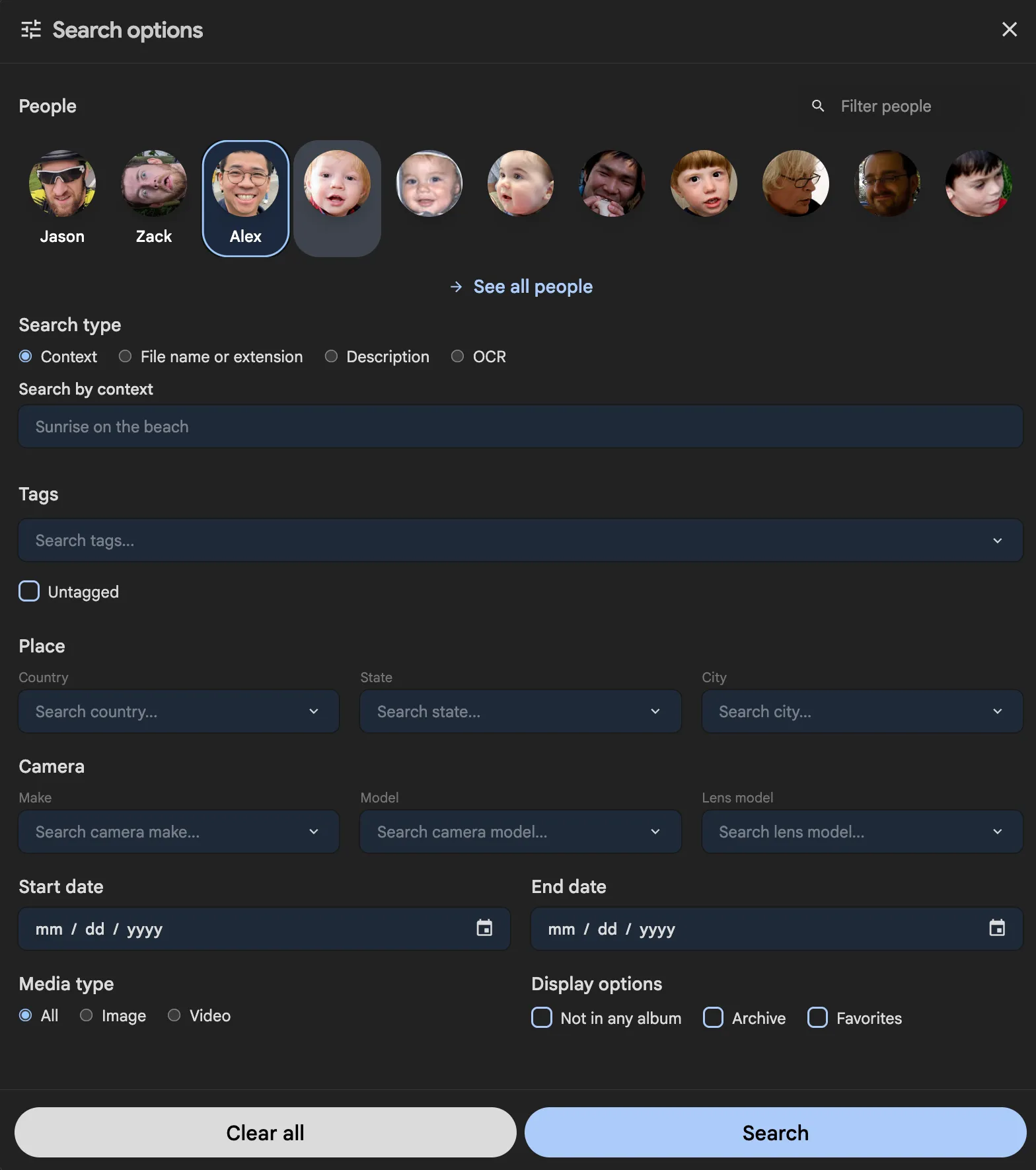
Search with advanced filters
Advanced search lets you find specific content using customizable filters, including location, one or more faces, specific albums, and more. You can search the following types of content:
| Type | Description |
|---|---|
| People | Faces that are recognized in your photos/videos. |
| Contextual | Content of the photos and videos. |
| File name or extension | Full or partial file's name, or file's extension |
| Full path or folder | Full or partial folder names from the original path. |
| Description | Description added to assets. |
| Optical Character Recognition (OCR) | Text in images |
| Locations | Cities, states, and countries from reverse geocoding. |
| Tags | Tags assigned or extracted from assets. |
| Camera | make, model and lens model |
| Time frame | Start and end date of a specific time bucket |
| Media type | Image or video or both |
| Display options | In Archive, in Favorites or Not in any album |
| Star rating | User-assigned star rating |
Search by folder or path
Use the Full path or folder filter when you know a folder name or part of the original asset path.
For example, for /John/Projects/3D_Printing/2026-07-01/IMG_0001.jpg, searches like Projects, 3D, Printing, or 2026 all match the asset.
Search by location
Cities, states, and countries come from reverse geocoding, which runs during metadata extraction — so location search only works for assets that have GPS coordinates.